Mostrando entradas con la etiqueta azure. Mostrar todas las entradas

lunes, 6 de abril de 2020

Create a Logic App to increase the number of instances in one App Service Plan


The purpose of this procedure is to increase the number instances of one WebApp in an automatic way, triggering from one specific http request. For that, one pre-requisite is to have Application Insights enabled for that WebApp.

First, we need to get the App Service Plan configuration in json format. To do that, we can do a REST API call to retrieve the json.

1. Generate the App Service Plan management URL:

     a. In the Azure portal, we navigate to the App Service Plan and copy the URL.


     b. Modify the URL as the example:

https://portal.azure.com/dafd**ail.onmicrosoft.com/resource/subscriptions/d9ec***a286c474d612/resourceGroups/ScaleOut_Test/providers/Microsoft.Web/serverFarms/ ASP-ScaleOut***/webHostingPlan

https://management.azure.com/subscriptions/ d9ec*****a286c474d612/resourceGroups/ScaleOut_Test/providers/Microsoft.Web/serverFarms/ASP-ScaleOut***?api-version=2019-08-01

2. We need to generate a bearer to authenticate. 

     a. An easy way is to use this site: 


     b. Click on TRY IT and authenticate with some credentials valid in the subscription, and you will get a temporary valid token.


3. Now we can use the App Service Plan management URL and the token to retrieve the json. We are going to use the tool Postman:


The next step is to get the information for the API Access of the Application Insights. We got this information in the Azure Portal. The information we need is the Application ID and one valid API Key.


To authenticate the REST API request we will launch to modify the App Service Plan, we are going to use an AAD APP, and we assign Owner permissions to this APP.


Now we can create the Logic App:
1. In the Azure Portal, go to the Logic Apps section and add a new Logic App.


2. The Logic App first trigger will be based in Recurrence:


3. Add and configure a new one step of type Application Insights - Run Analytics Query:


     a. Configure the Application Insights connection with the API Access information


     b. Configure the query we want to execute to see if the request has been registered in the WebApp:


4. Add and configure a new one step of type Control – For Each


     a. Add a Dynamic Content of “Value”:


     b. Add an action of type Control – Condition:


     c. Add a Dynamic Content of “Content_”


     d. And configure the condition as count is greater than or equal to 1


5. In the “If true”  column, add a new HTTP action:


     Configure the HTTP request as the example:


6. In the “If true”  column, add a new SMTP – Send Email (V3) action:


     a. Create an SMTP connection, with your SMTP server/user:


     b. Configure the outgoing email with the parameters you prefer, for example:


7. Finally, save the new Logic App


And if you want to verify if the change in the number of instances has been successful, check in the Web App, the sections Scale Out (App Service Plan) and Process Explorer:


sábado, 6 de mayo de 2017

Monitorizar App Services en el Portal de Azure


Recientemente han vuelto a modificar en el Portal Ibiza de Azure las opciones para monitorizar las webapps (App Services), por lo que voy a tratar de explicar un poco las opciones que tenemos para monitorizar nuestra página web alojada en Microsoft Azure. Estas herramientas nos ayudarán a determinar el rendimiento y posibles problemas que esté sufriendo nuestro sistema.
Ahora hay que entrar desde “Diagnose and Solve Problems”.Diagnose and solve problems - app service - azure


Nada más abrir esa opción podemos ver una gráfica con el status de las últimas 24h  y podemos intercambiar entre Availability, Requests y Performance.


Diagnose and solve problems - app service - azure

Diagnose and solve problems - app service - azure

Diagnose and solve problems - app service - azure


También hay una zona con Herramientas útiles para diagnosticar el estado del WebApp. Voy a intentar explicar un poco cada una de ellas:
Diagnose and solve problems - app service - azure


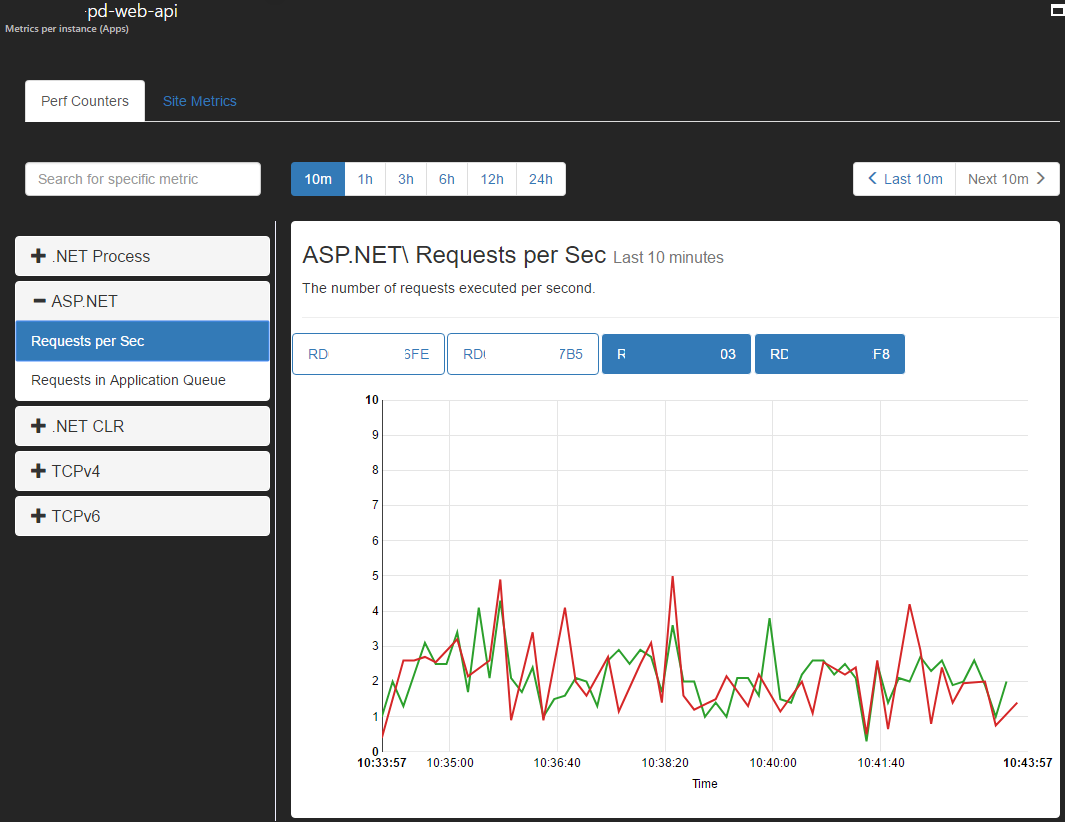
  • Metrics per instance (Apps):

En esta sección podemos revisar múltiples contadores de rendimiento (.NET Process, ASP.NET, .NET CLR, TCPv4 y TCPv6) y en distintos intervalos de tiempo, viendo las mismas en todas las instancias a la vez o indicando manualmente que instancia queremos comprobar.

Diagnose and solve problems - app service - azure


También podemos ver las métricas del site, viendo las mismas en todas las instancias a la vez o indicando manualmente que instancia queremos monitorizar.

Diagnose and solve problems - app service - azure


  • Metrics per instance (App Service Plan)
Aquí podemos ver las métricas de las instancias del Service Plan, viendo todas las APPS que comparten dichas instancias al estar en el mismo Service Plan, permitiendo ver también las métricas de los slots de staging. Podemos filtrar por instancia, intervalo de tiempo y Sites.

Diagnose and solve problems - app service - azure

Diagnose and solve problems - app service - azure


  • Live HTTP Traffic

Como su nombre indica, podemos visualizar el tráfico recibido por el WebApp en tiempo real, viendo las peticiones correctas, así como los errores de servidor (5xx) y las peticiones erróneas (4xx)

Diagnose and solve problems - app service - azure


  • Application Events

Es un Visor de Eventos del IIS donde está alojado el WebApp.


Diagnose and solve problems - app service - azure


  • Failed Requests Tracing Logs (FREB)

Esta herramienta realiza un seguimiento basado en una solicitud y produce un archivo de registro (en formato .xml) que muestra eventos y notificaciones de los diversos módulos que trabajaron en la solicitud durante su ciclo de vida.
Se puede filtrar por la URL, por el tipo de petición, por la hora y fecha, por el código de estatus…

Diagnose and solve problems - app service - azure


  • Diagnostics as a Service

Permite lanzar una solicitud para recopilar información en forma de log y analizada en formato HTML del Visor de Eventos, de los logs HTTP y hacer un Memory Dump (utilizar el Memory Dump con cuidado, ya que puede provocar una caída del servicio) de la instancia.

Diagnose and solve problems - app service - azure


  • Mitigate

Permite crear reglas de auto-reciclado del WebApp basado en el número de peticiones en un determinado intervalo de tiempo.

Diagnose and solve problems - app service - azure

Diagnose and solve problems - app service - azure


  • Advanced Application Restart

El reinicio avanzado de aplicación le permite reiniciar instancias individuales de la aplicación y reiniciar de forma inteligente varias instancias. El temporizador de reinicio le permite especificar el intervalo de tiempo en segundos que se usa al reiniciar determinadas instancias de la aplicación y reducir el efecto de los arranques en frío.

Diagnose and solve problems - app service - azure


miércoles, 21 de octubre de 2015

Azure SQL Geo-Replication Change Role Procedure

In the case of one Azure SQL Database gets degraded, if we have configured the Geo-Replication as shown in this post Azure SQL Geo-Replication Configuration, we can change the role of the replicated DB with this procedure and use it as the main DB.

1.  For activating the Secondary DB of the Geo-Replication, go to SQL databases in Ibiza Portal.


     2. Open the Primary DB and go to Geo-Replication

  
       3. On the Secondary DB, clic the 3 points on the right and select Stop Now


      4. One message appears indicating that the replication will stop and the Secondary DB will be converted in a stand-alone DB, press YES


      5. Using the command Get-AzureSqlDatabaseCopy we can verify the non-replicated status of the DB, it must not return any information.